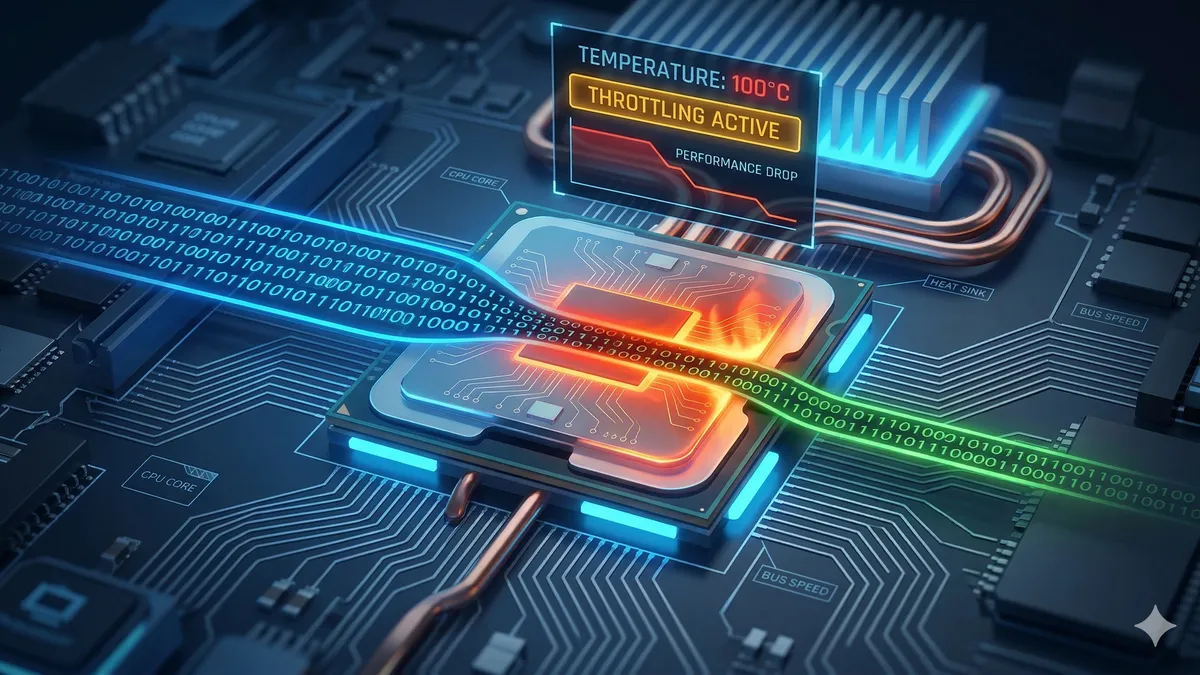
You've spent thousands on the latest CPU, yet during your render the performance plummets. Welcome to the invisible bottleneck: thermal throttling. Though alarming in name, it is actually a critical protection mechanism — designed to prevent physical destruction of your components. For ITAD engineers, identifying throttling directly impacts hardware classification and asset valuation.
1. What Exactly Is Thermal Throttling?
At its core, thermal throttling is the deliberate, automatic reduction of CPU or GPU performance in order to lower their operating temperature.
When these components execute complex computations, they draw significant electrical power — and the byproduct of that power consumption is heat. When the cooling system cannot dissipate heat fast enough and the temperature approaches the safe limit (typically 90–105°C for modern silicon), throttling activates.
Think of it like a runner who slows their pace on a scorching day to avoid heat stroke. The runner finishes slower, but safely. Without this mechanism, your processor would simply burn out — throttling is your hardware's insurance policy.
2. The Mechanism: How It Works
Modern CPUs and GPUs are equipped with numerous precision temperature sensors monitored in real time. When temperature exceeds the manufacturer-defined protection threshold (Tjunction / Tmax), the power management system (firmware/BIOS) takes automatic action:
⚙️ System Response Sequence to Overheating:
- Voltage Reduction (Undervolting): The first step is lowering the voltage delivered to CPU cores. Lower voltage = lower power draw = less heat generated.
- Clock Speed Reduction (Downclocking): Stable operation at lower voltage requires slower transistor switching — the processor dramatically reduces its operating frequency (GHz).
- Feedback Loop: After performance is reduced, temperature drops. Once it falls below the safe threshold, the CPU attempts to boost clocks again. If cooling is still inadequate, the cycle repeats — causing the characteristic performance "stuttering."
- Emergency Shutdown: If throttling is insufficient and temperature continues rising, the OS performs an emergency shutdown to protect against permanent silicon damage.
In HWiNFO64, look for the PROCHOT (Processor Hot) signal. When active, your CPU is being forcibly throttled — typically due to cooling system failure or chassis thermal saturation. This is the definitive hardware-level confirmation of thermal throttling in diagnostic logs.
3. Symptoms of Thermal Throttling
Throttling can be identified by system behavior under sustained load (gaming, video rendering, code compilation, multi-tasking):
🔴 Warning Signals — What to Watch For:
- Sudden dramatic FPS drop in games: The game runs smoothly for a few minutes, then suddenly begins stuttering — a characteristic throttling pattern once thermal saturation is reached.
- General system slowdown: Switching between windows or opening applications takes significantly longer than usual.
- Extended task duration: A video render that normally takes 10 minutes suddenly takes half an hour.
- Fans at 100% under light load: Fans running at maximum RPM even for simple tasks — the system is "fighting" to maintain safe temperatures.
- Uncomfortably hot chassis: For laptops, the area above the keyboard or the bottom surface becomes hot to the touch during regular work.
- Low clock speed in HWiNFO64: Real-time CPU clock monitoring shows values well below the nominal Boost Clock — definitive confirmation of active throttling.
4. Causes of Hardware Overheating
The causes of thermal throttling vary by device type. The table below covers the most common scenarios encountered during ITAD audits:
| Hardware Type | Most Common Causes | Repair Priority |
|---|---|---|
| Laptops (3–5 years old) | Dried thermal paste, dust-clogged heatsinks, use on soft surfaces. | High ❌ |
| Laptops (1–2 years old) | Inadequate OEM cooling design (design throttle), incorrect TDP limits in BIOS. | Medium ⚠️ |
| Desktop PCs | Dust accumulation, poor airflow layout, failed case fans, undersized CPU cooler. | Medium ⚠️ |
| Workstations / Servers | Overloaded PSU, insufficient rack airflow, failed VRM thermal pads. | High ❌ |
5. How to Fix and Prevent Throttling
Combating throttling means improving heat dissipation. Here are the steps from simplest to most advanced:
🛠️ Remediation Hierarchy:
- Dust cleaning (always first): Use compressed air to blow dust from heatsinks and fans. In laptops, focus on the exhaust vents and the fan area around the CPU heatsink.
- Ensure adequate airflow: Only use laptops on flat, hard surfaces. Consider an active cooling pad with fans for older business-class models.
- Thermal paste replacement: One of the most effective methods for hardware older than 3 years. Thermal paste dries out and loses conductivity. Use high-quality paste (e.g., Thermal Grizzly Kryonaut, Arctic MX-6).
- CPU Undervolting: Reduce CPU voltage while maintaining clock stability — via Intel XTU, Throttlestop (Intel) or Ryzen Master (AMD). Can lower temperatures by 10–20°C without any performance loss.
- TDP limits in BIOS/UEFI: On some business laptops, you can manually set PL1/PL2 power limits to prevent throttling while maintaining steady performance.
- Cooling system replacement: In extreme cases (failed fan, cracked heatsink), the cooling module must be replaced — important to note in ITAD classification.
Hardware exhibiting throttling under standard load (e.g., CPU temperature exceeding 90°C at 100% single-core load) should be classified at most as Grade B, unless the issue is resolved before valuation. Always document thermal test results in the audit note — record the maximum observed temperature and test conditions.
6. Tools for Temperature Monitoring
🌡️ Recommended Monitoring Software:
- HWiNFO64 (free): The most detailed hardware monitoring available — real-time per-core CPU clocks, per-core temperatures, PROCHOT signal, motherboard sensor readouts. The standard tool for ITAD auditors.
- CPU-Z / GPU-Z (free): Quick component specification identification and verification of current clock speeds during stress testing.
- Prime95 / Cinebench R23 (free): Generate 100% CPU load for thermal testing — 10 minutes is sufficient to expose throttling in degraded hardware.
- SpecInfo Display Audit (online): Quick system verification directly from the browser — no installation required, ideal for initial review during ITAD intake.