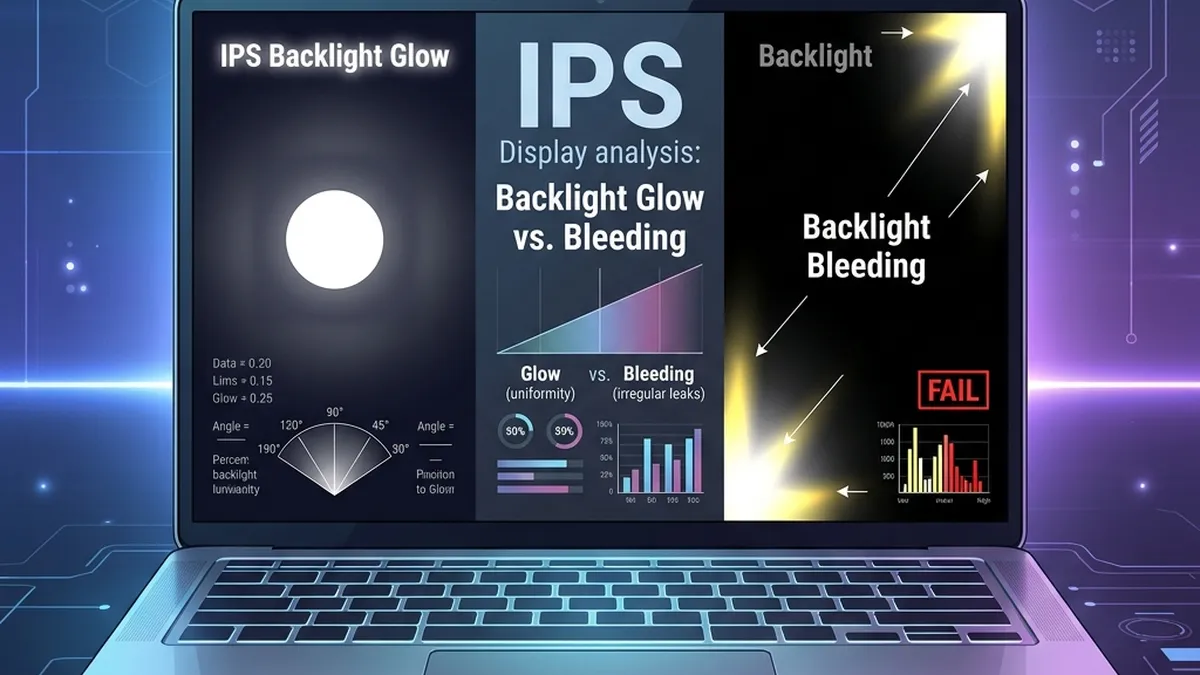
One of the most subjective — and commercially significant — assessments during a hardware audit is display quality. Engineers and ITAD specialists frequently misclassify IPS Glow (a natural optical characteristic of the panel technology) with Backlight Bleed (a measurable hardware defect that directly impacts asset grade and resale value).
Getting this distinction right is critical: misclassifying glow as bleed can result in incorrectly failed hardware audits, unnecessary warranty claims, and depressed B2B resale prices.
1. What Is IPS Glow?
IPS Glow is an optical side-effect inherent to IPS (In-Plane Switching) LCD technology. When viewing a dark screen at an angle — particularly from a corner — the polarizing filter interacts with ambient light, creating a silvery-gold or rainbow shimmer that shifts as you move your viewing angle.
🔬 IPS Glow — Technical Characteristics:
- Origin: Polarization filter + crystal alignment in IPS panels.
- Behavior: Disappears or relocates when you shift viewing angle or increase brightness.
- Affected Zones: All four corners symmetrically — never isolated to one area.
- Consistency: Visible only in dark environments at low brightness settings (0–30%).
- Classification: ✅ Normal characteristic. Not a hardware defect.
2. What Is Backlight Bleed?
Backlight Bleed occurs when the LED backlight module physically leaks light through gaps between the panel bezel and the LCD matrix — caused by excessive frame pressure, poor mechanical assembly, or physical damage. Unlike IPS Glow, Backlight Bleed is static and independent of viewing angle.
⚠️ Backlight Bleed — Technical Characteristics:
- Origin: Mechanical pressure misalignment, bezel flex, or backlight housing failure.
- Behavior: Completely static. Stays in exact same position regardless of viewing angle.
- Affected Zones: Most commonly bottom-edge, top-left corner — irregular and asymmetric.
- Consistency: Visible at normal operating brightness (50%+) in regular lighting conditions.
- Classification: ❌ Hardware defect. Warrants warranty assessment or grade penalty.
3. Side-by-Side Comparison Matrix
Use this matrix for rapid in-field display classification during hardware audits:
| Diagnostic Factor | IPS Glow ✅ | Backlight Bleed ❌ |
|---|---|---|
| Root Cause | Polarization filter interaction | Mechanical bezel pressure / assembly failure |
| Viewing Angle Shift | Changes / disappears when you move ✅ | Completely static — no change ❌ |
| Location on Screen | All four corners — symmetric | Isolated edge or corner — asymmetric |
| Brightness Threshold | Only at low brightness (0–30%) | Visible at 50%+ normal brightness |
| Room Lighting | Only in dark / blackout environment | Visible in normally lit room |
| Hardware Status | Normal — no defect | Hardware defect |
| Warranty / Grade Action | No action required | Warranty claim or grade penalty (B/C) |
Most enterprise-class warranties (Dell ProSupport, Lenovo Premier, HP Care Pack) only cover Backlight Bleed if it is clearly visible at ≥50% brightness in a normally lit room. IPS Glow is not covered. Document the defect with a photograph at 50% brightness before raising a warranty case.
4. OLED & AMOLED: The Third Display Failure Mode
For OLED and AMOLED panels (increasingly common in premium refurbished laptops), a third failure mode must be assessed during audits: burn-in / image retention.
🔴 OLED Burn-In — Technical Profile:
- Origin: Organic pixel degradation from prolonged static image display (taskbars, menus, logos).
- Detection: Cycle through solid red, green, blue (RGB) full-screen images — ghost outlines of static UI elements confirm burn-in.
- Severity Scale:
- 🟢 Image Retention — temporary, clears after rest period (not a defect).
- 🟡 Minor Burn-In — faint ghost visible only on solid backgrounds (Grade B penalty).
- 🔴 Severe Burn-In — visible during normal operation (Grade C/Repair/Scrap).
- Warranty Coverage: Typically NOT covered as manufacturing defect — classified as user-induced wear.
5. Step-by-Step: Field Audit Protocol
Use this standardized 5-step protocol to classify any laptop or monitor display during a hardware audit:
- Solid Black Test: Open a full-screen black image. Dim brightness to 15%. Observe corners for glow/bleed in a darkened room.
- Angle Shift Test: If anomaly is present — shift viewing angle by 30°. Does it move or reduce? → IPS Glow. Static? → Backlight Bleed.
- Brightness Threshold Test: Increase brightness to 50%. Is the anomaly still visible in normal room lighting? → Backlight Bleed confirmed.
- RGB Burn-In Test (OLED only): Cycle through solid red, green, blue screens. Check for ghost outlines of previous static UI elements.
- Document and Grade: Photograph all anomalies. Apply hardware grade according to the severity matrix above.
6. Using SpecInfo for Display Diagnostics
Use the SpecInfo Screen Audit module to run automated display tests directly from your browser — no software installation required:
🖥️ Available SpecInfo Display Tests:
- Dead Pixel Scanner — Full-screen RGB sweep to detect stuck or dead pixels.
- Solid Black Backlight Test — Controlled black-screen display for glow/bleed classification.
- Gradient Uniformity Check — Smooth grey gradient from 0% to 100% brightness to detect clouding or dirty screen effect.
- Color Gamut Reference — Standard colour patches for visual gamut comparison (sRGB / DCI-P3 reference).