Testing 1U / 2U / 4U Servers in Aiken Workbench: Complete BIOS, RAID-to-HBA & PXE Configuration Playbook
Once you rescue a high-value 1U, 2U, or 4U server from the pallet (see Part 1: 15-Second Pallet Triage) and place it on the test bench, the real headache begins. Unlike laptops—which boot straight into Aiken Workbench (or Blancco / Linux PXE) when you press F12—enterprise servers arrive locked down with corporate VLAN tags, disabled PXE stacks, hardware RAID controllers that hide physical drives from the OS, and forgotten BIOS passwords. Learning these quirks through trial and error takes weeks on the shop floor. Here is the complete, battle-tested BIOS and RAID configuration playbook to make any Dell PowerEdge, HPE ProLiant, Lenovo, or Supermicro server boot into Aiken and expose every single drive on the first try.
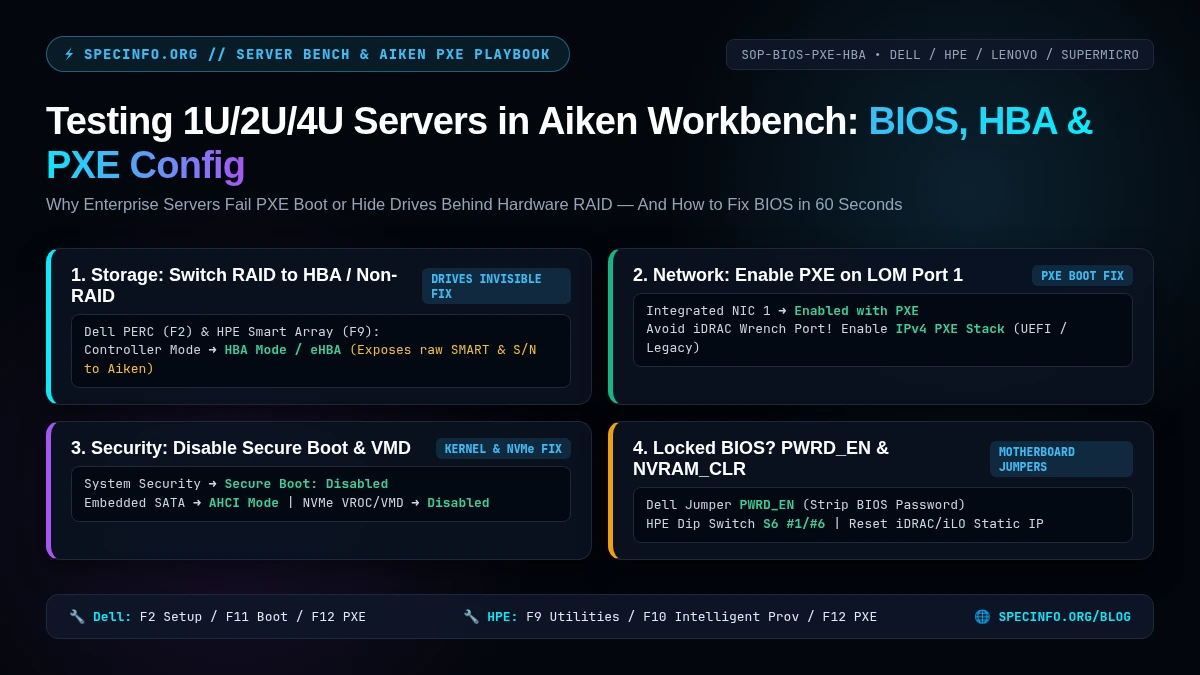
⚡ Interactive Server BIOS, HBA & Aiken PXE Configurator
Select OEM PlatformTo boot Aiken Workbench via PXE and expose all SAS/SATA drives for individual SMART health and NIST 800-88 wiping, press F2 (System Setup) during POST and configure these 4 exact menus:
1. Why Enterprise Servers Refuse to Work Out-of-the-Box in Aiken Workbench
When you plug an off-lease Dell Latitude or Lenovo ThinkPad into your Aiken Workbench switch and press F12, the laptop boots the PXE diagnostic environment in 20 seconds, reads the NVMe SSD serial number, logs CPU/RAM hardware specs to the central database, and starts the wipe.
When you try the exact same thing on a decommissioned 1U, 2U, or 4U rack server, three frustrating things happen:
- The Server Ignores PXE Completely: You wait 5 minutes for ECC RAM initialization, press
F12orF11, and either no network boot option exists, or PXE times out with "Media test failure, check cable" despite a green link light. - Aiken Boots, But Reports "0 Hard Drives Found": The front backplane has 8, 12, or 24 spinning SAS/SATA drives with solid green activity LEDs, yet Aiken Workbench shows an empty drive list and refuses to generate a sanitization certificate.
- The Server Halts on Corporate Locks: BIOS is locked with an unknown administrator password, iDRAC/iLO fans scream at 100% PWM, or POST halts indefinitely waiting for
F1confirmation.
Here is the step-by-step bench procedure to solve all three obstacles in under 90 seconds.
2. Problem #1: Aiken Shows "0 Drives Found" — How to Switch Hardware RAID to HBA / Passthrough Mode
Audit and sanitization suites like Aiken Workbench require direct, low-level block and SCSI/ATA command access (SG_IO / SMART / Sanitize / Format Unit) to every individual physical drive.
By default, enterprise servers route front drive bays through a hardware RAID controller (Dell PERC, HPE Smart Array, or LSI MegaRAID). When the controller is in RAID Mode:
- Any drive without a configured Virtual Disk (VD)—or holding a Foreign Configuration from the previous company's array—is 100% hidden from the Linux kernel and Aiken.
- Even if a RAID-5 or RAID-10 volume exists, the OS only sees a single logical synthetic block device (
Dell Virtual Disk), hiding the real physical serial numbers and SMART health of the individual drives!
A. Dell PowerEdge 13G / 14G / 15G (PERC H730, H730P, H740P, H755)
Do not use the legacy Ctrl+R BIOS utility if your server is running in UEFI mode. Instead, use the unified F2 System Setup interface:
- Power on the server and press
F2(→ System Setup). - Select Device Settings → click your RAID controller (e.g., Dell PERC H730P Mini Configuration Utility).
- First, Clear Any Foreign or Old RAID Config: Go to Configuration Management → Clear Configuration (this deletes old Virtual Disks metadata without destroying the drives).
- Switch Controller to HBA Mode (Best Method):
- Navigate to Controller Management → Advanced Controller Management (or Change Controller Properties).
- Find Personality Mode (or Current Controller Mode) and switch it from
RAIDtoHBA Mode(oreHBA Modeon PERC 10/11). - Click Apply Changes and reboot. Every physical SAS/SATA drive in the front bays will now pass directly to Aiken Workbench with its native serial number and SMART attributes!
- Alternative (Convert to Non-RAID Disks): If you keep the controller in RAID/eHBA mode, go to Physical Disk Management → select Convert to Non-RAID Disk → check all drives → click Go.
Unlike the H730/H740P, the older PERC H710 and H700 firmware does not support native HBA passthrough or Non-RAID drives! If you plug drives into an H710, Aiken will see nothing unless you either:
1) Swap in a Dell H310 / HBA330 card for testing, OR
2) Press
Ctrl+R during boot, clear the Foreign Config, and create a separate Single-Drive RAID 0 Virtual Disk for each drive (or use MegaCLI / perccli perccli /c0 add vd each r0 drives=all).
B. HPE ProLiant Gen9 / Gen10 (Smart Array P440ar, P840, P408i-a, E208i-a)
- Boot the server and press
F9(System Utilities). - Navigate to System Configuration → select your Smart Array Controller (e.g., Smart Array P440ar or P408i-a SR Gen10).
- Select Configure Controller → Set Controller Mode (or Modify Controller Settings).
- Change the mode from
RAID ModetoHBA Mode(on Gen10,Mixed Modeautomatically exposes unconfigured drives as raw HBA devices to Aiken!). - Save and reboot.
3. Problem #2: Server Refuses to PXE Boot into Aiken Workbench
Enterprise 1U/2U servers often have 5 to 9 RJ45 and SFP+ ports on the back panel. If PXE fails to trigger when you press F12, check these four culprits in order:
Step 1: Avoid the Dedicated iDRAC / iLO Management Port!
The single RJ45 port isolated in the bottom-left corner marked with a Wrench Icon 🔧 (iDRAC) or labeled iLO connects only to the out-of-band management chip. It has zero connection to the main CPU bus and can never PXE boot the server. Always plug your Aiken bench Ethernet cable into Integrated NIC 1 (LOM Port 1 / Gb1).
Step 2: Enable PXE Protocol on NIC 1 in BIOS
Corporate sysadmins disable PXE boot in production for security. Even when the port LED blinks green, the BIOS skips network boot unless re-enabled:
- Dell PowerEdge (
F2→System BIOS):- Go to Integrated Devices → verify Integrated Network Card 1 is set to
Enabled(not Disabled (OS)). - Go to Network Settings → under PXE Device 1, check
Enabled→ click PXE Device 1 Settings → selectNIC.Integrated.1-1-1 (Port 1)and set Protocol toIPv4.
- Go to Integrated Devices → verify Integrated Network Card 1 is set to
- HPE ProLiant (
F9→System Configuration):- Go to BIOS/Platform Configuration (RBSU) → Network Options → Network Boot Options.
- Set Embedded LOM 1 Port 1 to
Network Boot (PXE)and enable IPv4 PXE Policy.
Step 3: Match UEFI vs. Legacy BIOS Boot Mode to Your Aiken Server
Check how your warehouse's Aiken PXE server DHCP (Option 67) is configured:
- If your Aiken bench serves a Legacy PXE bootloader (
pxelinux.0/undionly.kpxe), a server set toUEFI Boot Modewill download the NBP file and immediately abort back to the boot menu! SwitchBoot Modein BIOS fromUEFItoBIOS (Legacy)—or if using UEFI PXE (ipxe.efi/grubx64.efi), ensure Secure Boot is set toDisabled(F2→System BIOS→System Security→Secure Boot: Disabled).
Step 4: Clear Corporate VLAN Tags on the NIC
Sometimes a server shows "Start PXE over IPv4..." and spins for 60 seconds without receiving a DHCP IP from Aiken. Check PXE Device Settings or the Broadcom/Intel NIC configuration menu—previous data center admins often hardcode a VLAN ID (e.g., VLAN 104) directly into the NIC NVRAM! Uncheck VLAN Mode (or reset BIOS/NVRAM to defaults) so the port sends untagged DHCP requests.
4. Problem #3: Hidden NVMe U.2 Drives & M.2 BOSS Cards (SATA AHCI & Intel VMD Bypass)
On modern Dell 14G/15G (R640, R740xd, R750) and HPE Gen10+ servers equipped with direct-attached U.2 NVMe SSDs or dual-M.2 Dell BOSS (Boot Optimized Storage Solution) cards, switching the SAS PERC controller to HBA mode is not enough:
- Embedded SATA Controller Mode: Go to
F2→System BIOS→SATA Settings. By default, Dell often sets Embedded SATA toOfforRAID Mode. Switch it toAHCI Modeso onboard SATA DOMs and optical/SATA bays appear in Aiken. - Intel VMD (Volume Management Device) / VROC: On Xeon Scalable servers, Intel VMD aggregates NVMe PCIe lanes behind a hardware root-port domain (
8086:201d/28c0). If Intel VMD is enabled without VMD drivers loaded in the PXE kernel, Aiken sees zero NVMe drives. Navigate toSystem BIOS→Integrated Devices→NVMe Settingsand switch fromRAID (VMD Enabled)toNon-RAID (VMD Disabled).
5. Problem #4: Clearing Forgotten Corporate BIOS Passwords & Stuck NVRAM in 10 Seconds
When a decommissioned server asks for a Setup Password as soon as you press F2, do not waste time guessing passwords. Pop the top cover and use the factory hardware maintenance pins on the motherboard:
| Server Manufacturer | Physical Jumper / Switch Location | Password Bypass Procedure | Full NVRAM / CMOS Reset |
|---|---|---|---|
| Dell PowerEdge (12G / 13G / 14G / 15G) |
Two 3-pin jumper blocks labeled PWRD_EN and NVRAM_CLR near the rear motherboard edge or CR2032 battery. |
Power off. Move the plastic jumper cap on PWRD_EN from pins 1-2 (or 2-3 depending on gen) to the opposite pair to leave the password enable pin open. Boot once—BIOS password is now completely cleared! |
Move the jumper cap on NVRAM_CLR from pins 1-2 (default) to pins 2-3 for 10 seconds with AC plugged in (or boot once), then return to 1-2. Clears all corrupt BIOS settings and VLAN tags. |
| HPE ProLiant (Gen8 / Gen9 / Gen10) |
10-position or 12-position miniature DIP switch block labeled System Maintenance Switch (SW6 / S6) on the motherboard. |
Power off. Flip Switch #1 (iLO Security / Password Disable) to ON. Boot into F9 and set a blank password, then flip Switch #1 back to OFF. |
Flip Switch #6 (Reset Configuration / NVRAM Clear) to ON, power on the server until POST displays "Maintenance switch detected", power off, and return Switch #6 to OFF. |
| Supermicro (X10 / X11 / H11 / H12) |
Solder pads labeled JBT1 near the CR2032 coin battery. |
Unplug AC power cords completely, remove the CR2032 battery, and short the two JBT1 solder pads together with a flathead screwdriver tip for 10 seconds. |
|
If a Dell server's fans roar at 100% RPM continuously during Aiken testing, the iDRAC BMC is either stuck or enforcing a custom thermal offset from its previous data center rack. In
F2 → iDRAC Settings → Reset iDRAC configurations to defaults, trigger a reset. The iDRAC reboots in the background (without rebooting the server!), clears the old corporate static IP, and drops fan noise by 70% within 45 seconds.
Blocked / 0 MB from a NetApp/EMC SAN array—read Part 3 of our trilogy: SAS Drive Not Detected on the Bench? 520-Byte Sector Format (sg_format), SATA vs. SAS HBA & Pin 3 PWDIS Fix →
Essential Bench Gear for 1U/2U/4U Aiken PXE & SAS HBA Auditing
Equip your server testing bench with native IT-Mode HBA controllers (for legacy Dell 12G / PERC H710 servers without HBA passthrough), KVM-over-IP crash carts, powered VGA-to-HDMI converters, and VLAN-capable PXE bench switches:
Equip Your Bench with Official SpecInfo ITAD & Linux Rescue Toolkits
Standardize your hardware auditing, MDM/Autopilot decommissioning, Zebra ZPL asset labeling, and Linux server triage with our printable 300 DPI A4 engineering runbooks and production scripts.