SAS Drive Not Detected on the Bench? 4 Hardware Locks, 520-Byte Sector Formatting (sg_format) & Pin 3 PWDIS Fix
Every ITAD facility and server refurbishment bench runs into this exact wall: a technician slides a standard SATA drive into a server bay, and the system detects it immediately. They pull the SATA drive out, slide an enterprise SAS (Serial Attached SCSI) hard drive or SSD into the exact same bay—the green caddy LED lights up, the drive gets warm, yet Aiken Workbench, Windows, and Linux show 0 Drives Detected. Thousands of perfectly healthy £50–£150 enterprise SAS drives are mistakenly thrown into the scrap bin every week because technicians think they are dead. Here are the 4 physical and protocol locks that make SAS drives invisible—and how to unlock them in minutes.
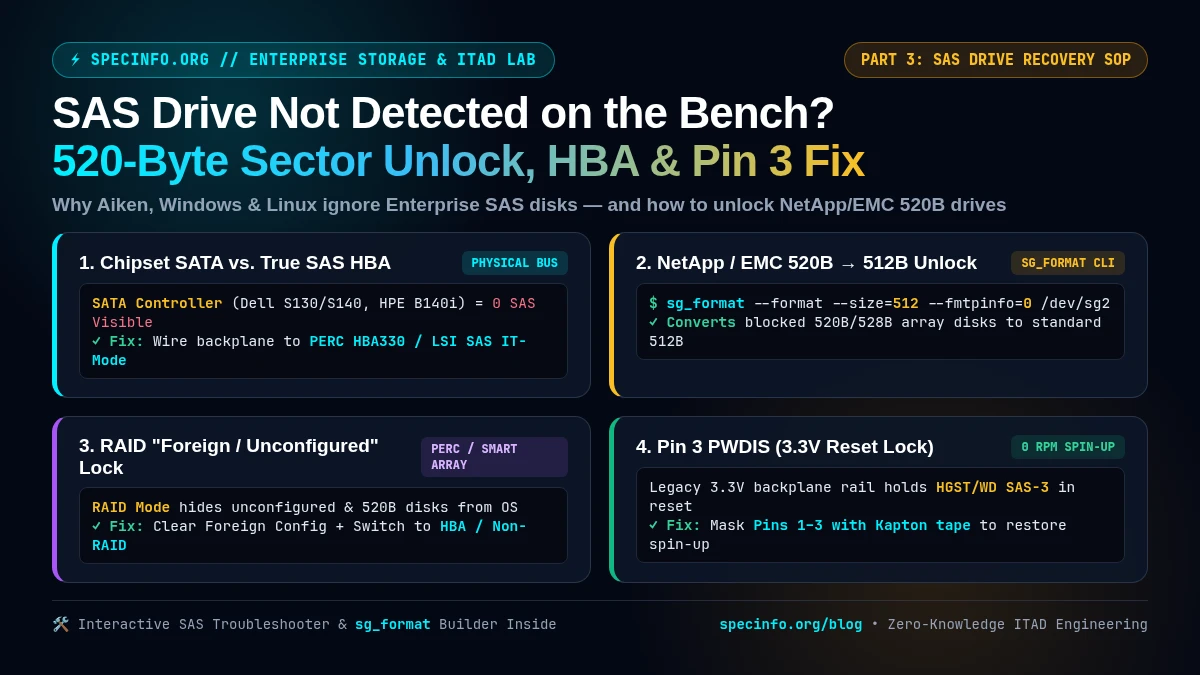
⚡ Interactive SAS Drive Visibility & 520B Unlock Troubleshooter
Select Bench Symptom1. Trap #1: The One-Way Compatibility Trap (Chipset SATA vs. True SAS HBA)
The #1 reason a bench computer or entry-level server fails to detect SAS drives is a fundamental misunderstanding of the physical connector vs. the electrical protocol:
- SAS Controllers Speak Both SAS and SATA: A dedicated SAS Host Bus Adapter (such as a Broadcom/LSI SAS2008/3008, Dell PERC H330/H730/HBA330, or HPE Smart Array P408i/P440) includes dual signaling engines: it speaks SCSI over SAS to enterprise SAS drives and STP (SATA Tunneling Protocol) to consumer/enterprise SATA drives.
- Motherboard SATA Controllers Speak ONLY SATA: An onboard Intel or AMD chipset SATA controller (AHCI / Software RAID) lacks a SCSI engine and cannot handle SAS higher signaling voltages or full-duplex dual-porting.
- Why Server Backplanes Fool Technicians: Server drive backplanes use a universal SFF-8482 receptacle that accepts both SAS and SATA caddies. In base-model servers ordered with "Software RAID" (such as Dell PowerEdge S130 / S140 / S150 or HPE ProLiant Dynamic Smart Array B140i / S100i), the internal Mini-SAS HD cable (
SFF-8643orSFF-8087) from the backplane is plugged directly into the motherboard's onboard SATA sockets instead of a PCIe SAS card.
2. Trap #2: NetApp, Dell EMC, IBM & Hitachi 520-Byte Sector Drives (The Goldmine Hidden in the Scrap Bin)
What if your server does have a real SAS controller, yet a batch of decommissioned SAS hard drives or SAS SSDs shows up in the controller BIOS as Blocked, Unsupported, or 0 MB Capacity—and remains completely invisible in Aiken Workbench, Windows Disk Management, or Linux fdisk -l?
Those drives are almost certainly healthy enterprise drives pulled from a proprietary SAN storage array (NetApp FAS/AFF, Dell EMC VNX/Unity/PowerMax, Hitachi VSP, IBM Storwize, or HP 3PAR).
Why Standard Operating Systems Cannot See 520-Byte SAS Drives
- Standard x86/x64 operating systems (Windows, Linux block layer, ESXi, Aiken PXE) strictly require storage sectors of
512 bytes(or4096 bytes / 4Kn). - Enterprise SAN arrays format their SAS drives at the low-level controller layer to
520 bytesor528 bytesper sector (or4160 bytes), using the extra 8 or 16 bytes per sector to store hardware T10-PI (Protection Information / DIF) checksums. - When you insert a 520-byte SAS drive into a standard Dell PERC or HPE Smart Array RAID card, the RAID firmware rejects the non-standard sector geometry and hides the disk. When connected to a pure HBA in Linux, the kernel refuses to mount a standard block device (
/dev/sdXreports 0 sectors), making the disk invisible to GUI wiping tools!
Step-by-Step: How to Detect & Reformat 520B SAS Drives to Standard 512B in Linux
To unlock 520-byte SAS drives, connect them to a server with a controller in pure HBA / IT-Mode (such as a Dell HBA330, PERC H730 in HBA Mode, HPE H240, or LSI 9211-8i/9300-8i IT-Mode) and boot any Linux Live-USB (Ubuntu, SystemRescue, Debian) with sg3-utils installed:
# Step 1: Install SCSI generic utilities (if running Ubuntu/Debian Live-USB)
sudo apt-get update && sudo apt-get install -y sg3-utils lsscsi

# Step 2: List all raw SCSI Generic (/dev/sgX) devices — even invisible 520B drives appear here!
sudo lsscsi -g

# Step 3: Verify the exact sector size (e.g.Logical block length=520 bytes) and T10-PI protection type
sudo sg_readcap /dev/sg2

# Step 4: Low-level reformat a single SAS drive from 520B/528B to standard 512B (and clear T10-PI Type 1/2/3)
sudo sg_format --format --size=512 --fmtpinfo=0 /dev/sg2Low-level formatting (
sg_format) rewrites every sector boundary on the platters and takes ~45 minutes per TB on mechanical SAS HDDs (or just 10–30 seconds on SAS SSDs!). Never format them one by one! Because SAS is full-duplex point-to-point, you can format all 12 or 24 drives in a 2U/4U server simultaneously in the background without losing a single minute of speed:
# Parallel Batch Unlock: Automatically find all 520-byte SAS drives and format them to 512B simultaneously!
for dev in /dev/sg*; do
 if sudo sg_readcap "$dev" 2>/dev/null | grep -q "520 bytes"; then
 echo "🚀 Unlocking 520B SAS drive on $dev in background..."
 sudo nohup sg_format --format --size=512 --fmtpinfo=0 "$dev" > "/tmp/format_$(basename $dev).log" 2>&1 &
 fi
done
echo "✅ All 520B drives are formatting in parallel! Monitor progress with: tail -f /tmp/format_sg*.log"
Once sg_format reaches 100%, run sudo partprobe (or hot-unplug and re-seat the caddies). Every single drive will immediately appear in Aiken Workbench, Windows, and Linux as a standard 512-byte enterprise drive ready for S.M.A.R.T. grading and resale!
3. Trap #3: Hardware RAID Controllers Hiding Unconfigured & "Foreign" SAS Drives
As detailed in Part 2 of our Server ITAD Series, even standard 512-byte SAS drives will be 100% invisible to the operating system if the server's Dell PERC or HPE Smart Array card is left in its default RAID Mode:
- Unconfigured Good State: When you slide loose SAS drives into a server whose controller is in RAID Mode, the controller holds them in a quarantine state called
Unconfigured Good. It waits for an administrator to build a RAID-1/RAID-5 Virtual Disk before exposing any storage to the OS. - Foreign Configuration Lock: If a SAS drive previously belonged to a RAID array in another server, its final sectors contain DDF/MegaRAID metadata. The moment you insert it, the PERC / Smart Array controller flags it as
Foreignand blocks all OS access to prevent accidental data corruption. - The Fix: Enter
F2 → Device Settings → PERC(orF9 → Smart Arrayon HPE), selectClear Foreign Configuration, and switch the controller personality toHBA Mode(orNon-RAID). On older Dell 12GPERC H710 / H700cards that lack HBA mode, either swap in a £20Dell H310 / HBA330card on your wiping bench or pressCtrl+Rand create 1-drive RAID-0 arrays.
4. Trap #4: The Pin 3 PWDIS (3.3V Power Disable) Trap on Modern 8TB–22TB SAS-3 & Enterprise Drives
What if you slide a modern high-capacity enterprise SAS-3 (12Gb/s) or enterprise helium SATA drive (especially HGST Ultrastar He8/He10/He12 or Western Digital Ultrastar DC HC320/HC520/HC550) into an older server backplane or external bench dock, and the drive stays stone cold with 0 RPM spin-up?
| Pin Number (SAS/SATA Power Header) | Legacy ATX / Server Standard (Pre-2016) | Modern Enterprise Standard (SAS-3 / SATA 3.3+) | What Happens in an Older Backplane / Dock? |
|---|---|---|---|
| Pin 1 & Pin 2 | +3.3V DC Power Rail (Unused by 3.5" drives, which only run on +5V and +12V) |
Reserved / Disconnected | No effect. |
| Pin 3 (The Culprit!) | Supplies continuous +3.3V DC power from the PSU / backplane. |
PWDIS (Power Disable): Applying +3.3V DC to Pin 3 triggers a continuous Hard Reset! |
🚨 DRIVE PLAYS DEAD (0 RPM): Because the older backplane feeds constant +3.3V into Pin 3, the drive controller stays locked in permanent reset and never spins up its motor! |
The 10-Second Bench Fix for Pin 3 PWDIS
- The Kapton Tape Mask: Cut a 4 mm wide strip of non-conductive Kapton (polyimide) or electrical tape and place it neatly over Pins 1, 2, and 3 on the gold power fingers of the SAS/SATA drive (the three pins closest to the L-shaped alignment notch on the power side). Slide the drive back into the caddy—with the 3.3V rail insulated, the drive spins up immediately at full speed!
- For External Bench Cables: Use a classic 4-pin Molex to SATA/SAS power adapter (Molex cables only carry +12V Yellow and +5V Red wires, completely omitting the +3.3V Orange wire) or snip the orange 3.3V wire on your bench test harness.
5. How to Build a Dedicated SAS Drive Wiping Station for Aiken Workbench (Why £20 USB-to-SAS Docks Fail)
Booting a heavy 2U enterprise server takes 5 minutes of ECC memory training and screams at 80 dB on the bench. How can you format and wipe loose SAS drives on a fast, quiet desktop PC that boots into Aiken Workbench over PXE in 15 seconds?
99% of cheap (£15–£30) docks and cables advertised as "SFF-8482 SAS/SATA to USB 3.0" are mechanical fakes! Manufacturers take a cheap USB-to-SATA bridge chip (like JMicron JMS578) and mold a wide
SFF-8482 plastic plug without the center notch so a SAS drive physically fits. The drive spins up from 12V power, but a SATA bridge chip can never read a SAS drive. True hardware USB-to-SAS bridges cost £200–£350 per single port. Never waste money on USB adapters—use a PCIe HBA instead!
| Bench Architecture | Required Hardware (Harvested from Scrap or £35 Total) | Drive Capacity | Why It Works Perfectly with Aiken PXE & Linux |
|---|---|---|---|
| 1. Desktop PC + PCIe HBA + "Octopus" Breakout Cable (Best for Bench Techs) |
• Standard Desktop PC (OptiPlex Tower / HP Z240/Z440) • PCIe SAS HBA in IT-Mode (LSI 9211-8i / 9300-8i IT-Mode Bundle ↗, Dell HBA330, or HPE H240)• Cable: Mini-SAS (SFF-8087 or SFF-8643) to 4x SFF-8482 SAS with 4-Pin Molex Power (£11) |
4 to 8 SAS Drives directly on the bench mat | ✅ 15-Second Boot + Automatic Pin 3 Fix: Because the card runs in pure IT-Mode passthrough, Aiken sees all SAS drives natively with full S.M.A.R.T. Plus, powering the cable via 4-pin Molex omits the +3.3V wire, automatically bypassing Pin 3 PWDIS! |
| 2. Workstation 5.25" Trayless Hot-Swap Cage (Cleanest Cable-Free Bench) |
• Desktop Tower with 2x or 3x 5.25" DVD bays• ICY DOCK TurboSwap / FatCage SAS/SATA ↗ (Trayless 5.25" Enclosure with 80mm active cooling fan) • Internal PCIe SAS HBA |
5 to 10 SAS Drives (Zero caddies or screws needed!) | ✅ Active Thermal Cooling: 10K/15K RPM SAS drives reach 60°C+ on an open desk during multi-hour NIST wipes. A 5.25" cage cools the drives and lets you swap bare drives in 2 seconds without caddies. |
| 3. Always-On 2U Server or External JBOD Disk Shelf (High-Volume 12–24 Bay Rig) |
• Option A: 1x 2U 12-bay server (Dell R730xd / R530 with HBA330) left booted into Aiken all day (swap caddies live via Hot-Plug!). • Option B: Desktop PC with external HBA ( LSI 9200-8e / 9300-8e) wired to a 12/24-bay JBOD Shelf (Dell MD1200 / NetApp DS4246). |
12 to 24+ SAS Drives simultaneously | ✅ Zero Reboot Penalty: Never power down the server between batches! In HBA Mode, pull 12 wiped drives out live, slide 12 new SAS drives in, click Rescan in Aiken, and wipe 100+ drives per shift. |
Equip Your Bench with Official SpecInfo ITAD & Linux Rescue Toolkits
Standardize your hardware auditing, MDM/Autopilot decommissioning, Zebra ZPL asset labeling, and Linux server triage with our printable 300 DPI A4 engineering runbooks and production scripts.